Nederlands
 English
A pick list is a collection of the products that belong to multiple orders. Say you want to pick 10 orders: you gather all the products that belong to those orders. Once everything is picked, you can pack the orders quickly and efficiently.
Within ShopLinkr we have built a universal pick list that lets you process orders quickly and clearly. Whether you work with separate bins or gather everything in one bin, the system adapts to your way of working.
Generating a pick list
Go to Pick lists > Generate pick list. On this page you can filter by:
-
Orders from specific sales channels (such as your webshop)
-
Product locations within your warehouse
-
Only single-item orders or specifically excluding them
-
Only certain products
-
Tags
-
Parcel type
-
Pickup moment
-
Order date
These filters help you pick in a targeted and efficient way.
Starting to pick
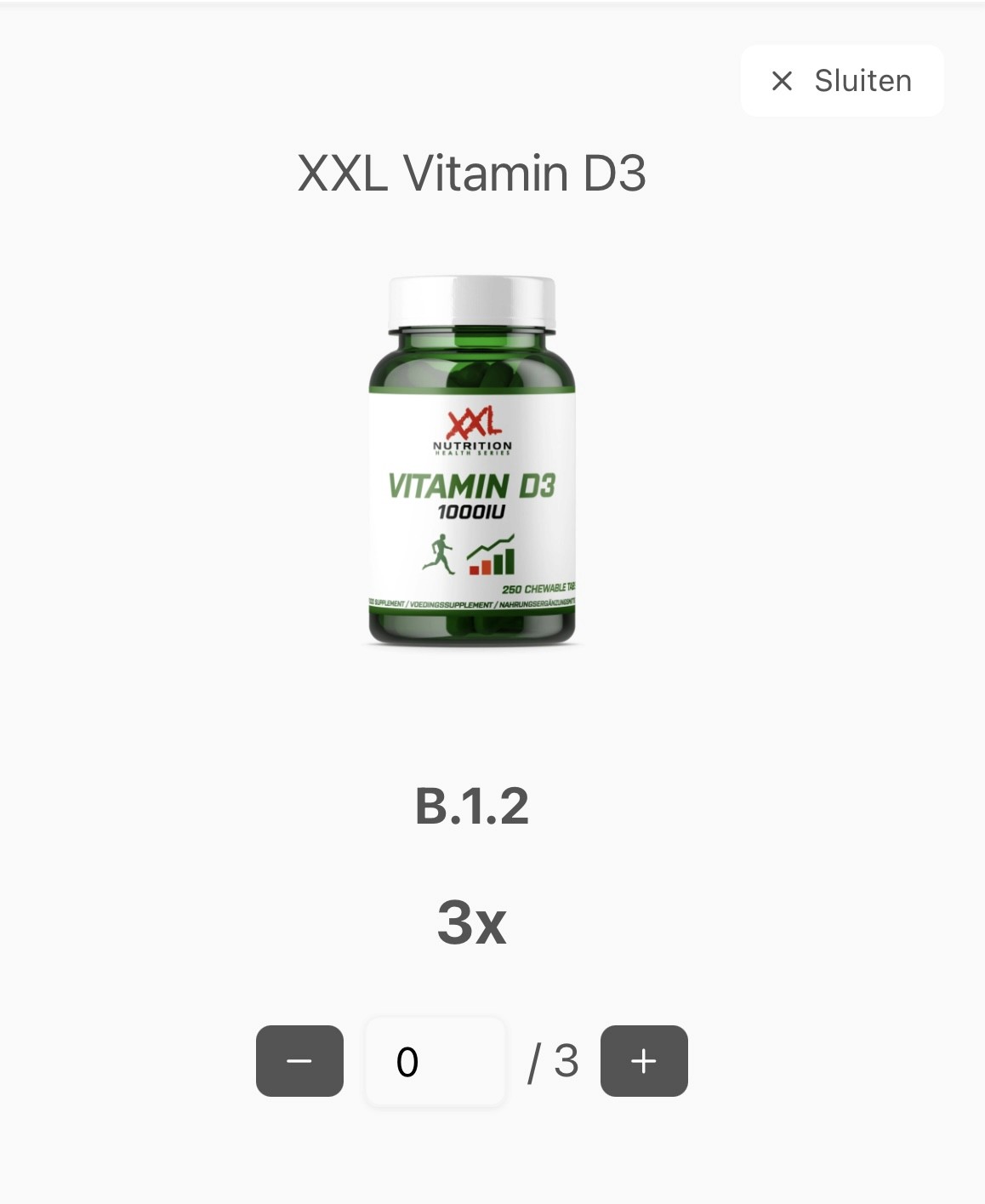
As soon as you have created the pick list, you can start picking. This works best on a handheld scanner. On it you can see:
-
Which product you need to pick
-
Where it is located in your warehouse
You scan the product (or add it manually). After a successful scan you automatically move on to the next product. This way you work through all the products systematically.
Processing orders
Once all the products are picked, you can process the orders. There are two ways to do this:
Without bins
-
Gather all the products in one large bin.
-
Scan any product from the bin (or select an order manually).
-
ShopLinkr automatically opens the matching order.
-
You immediately see which products belong to it.
-
The shipping label is automatically requested and printed (provided you have connected AutoPrint).
-
Scan the next product and process all orders this way.
With bins
-
Give each bin a unique barcode (which you can generate within ShopLinkr).
-
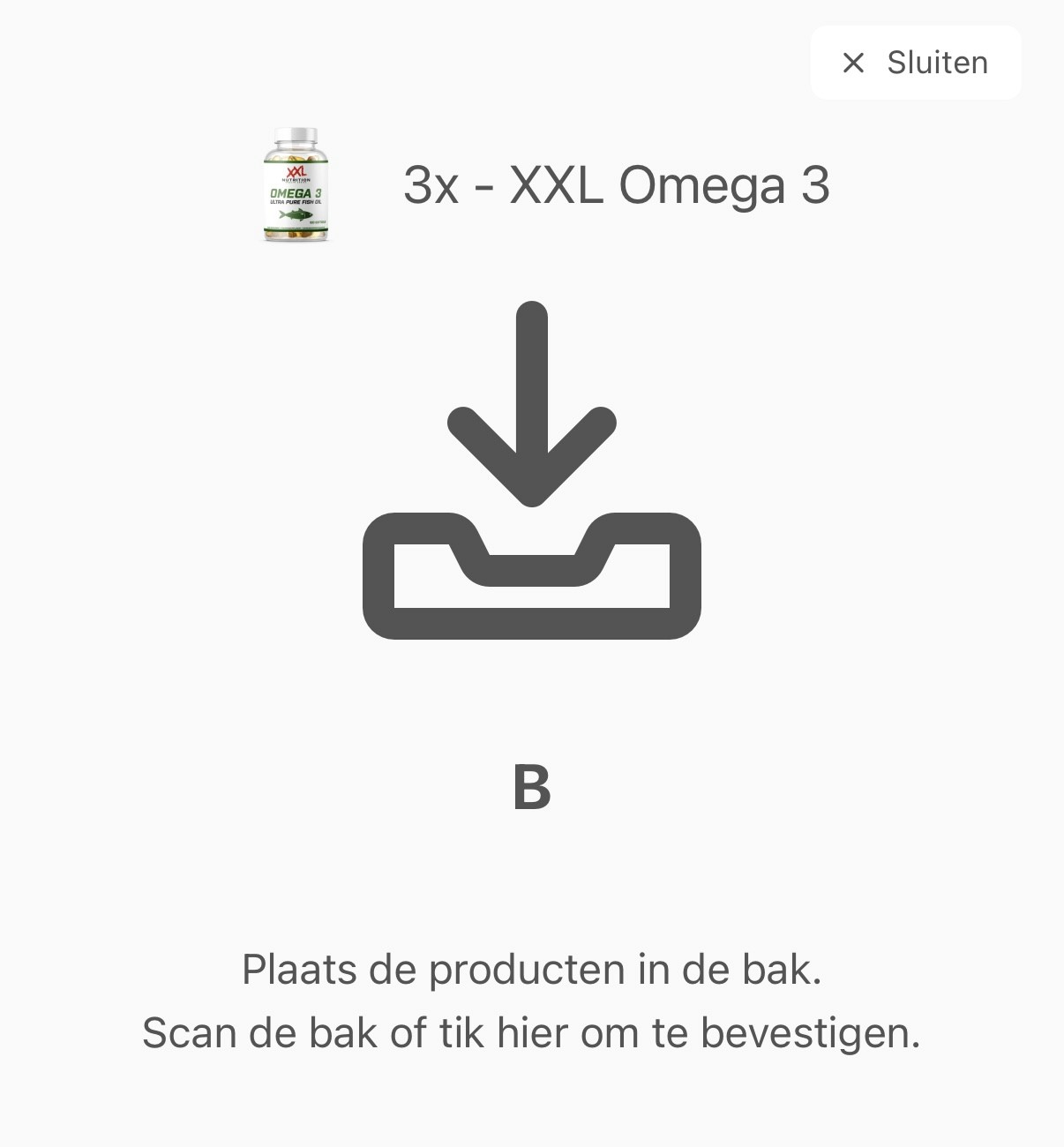
While picking, ShopLinkr links each order to a specific bin (for example bin A, B, C...).
-
You scan the product first, then the correct bin. This way you can be sure the product ends up in the right bin.
-
Place the bins at the packing station.
-
The packer scans a bin and the matching order opens automatically.
-
Scan the products again and process the order.
Benefit: this extra check prevents mistakes and saves time and money.
Unlinking an order from the pick list
Sometimes an order should not stay on the pick list after all. The customer calls to change something, for example, or you want to process the order separately later. As long as the order has not been processed yet, you can unlink it from the pick list. That also works while picking is in progress, or when everything has already been picked.
You unlink an order with the Unlink action. You will find it in two places: in the action menu of the order itself, and on the pick list page next to the orders on the list.
This is what happens after unlinking:
-
The order returns to the Open status and is simply included again in a next pick list.
-
Quantities that were already picked are returned to stock. Put those products back in their location.
-
The pick list adjusts itself: the quantities on the list are immediately correct again, including on a handheld scanner that is already being used for picking.
-
If this was the last order on the pick list, the empty pick list is deleted automatically.
Want to adjust the order afterwards? Also read Editing an order.