Nederlands
 English
If you work with multiple locations in your warehouse, you can easily move stock from one location to another. This is handy when, for example, you want to move stock from a bulk location to a pick location.
Moving stock
-
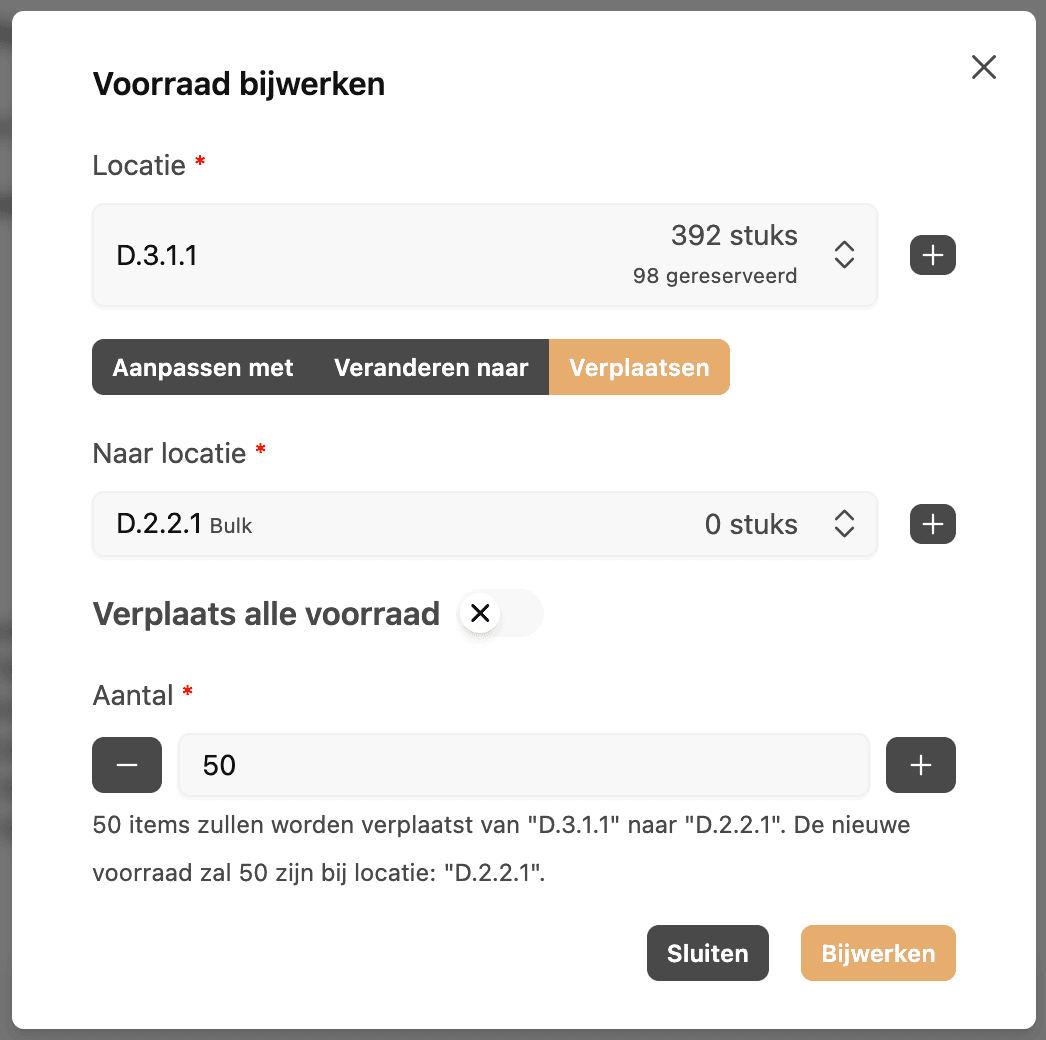
Go to Products and open the product whose stock you want to move.
-
Click Update stock.
-
Select the source location: the location where the stock currently sits.
-
Set the type to Move.
-
Select the destination location: the location you want to move the stock to. You can also create a new location right here.
-
Enter the quantity you want to move, or turn on Move all stock to move everything at once.
-
Click Update.
The stock is moved immediately. You can see the movement in the product's stock movements.
Good to know
-
You can move at most the number of units available at the source location.
-
If you select the full quantity at the source location, the Move all stock toggle is switched on automatically.
-
Besides moving, you can also manually increase, decrease, or set stock to a specific number from the same screen.