Nederlands
 English
Follow the steps below to connect your Kaufland account to ShopLinkr.
-
Log in to your Kaufland account.
-
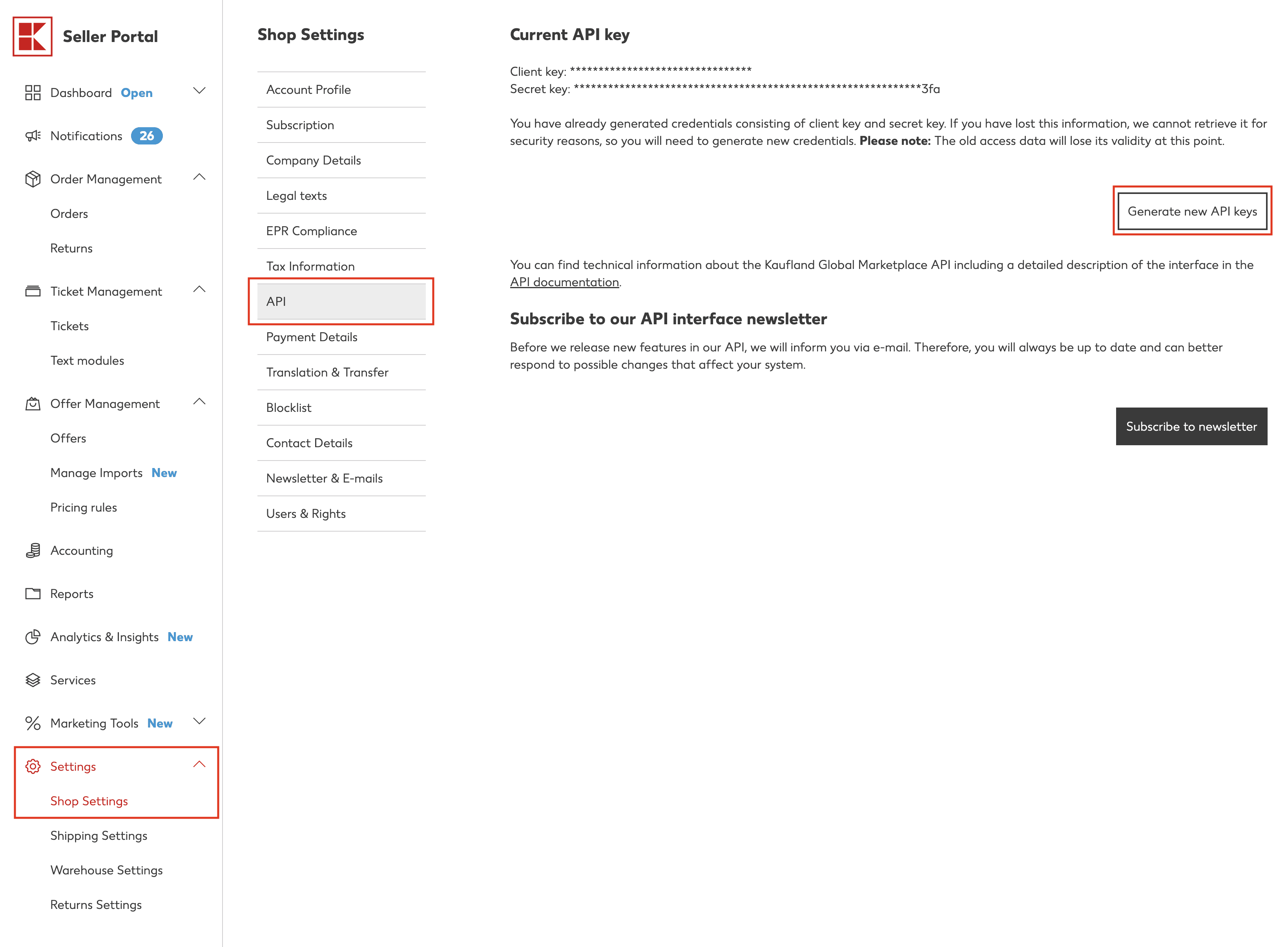
Go to "Settings" > "Shop Settings" > "API" and click "Generate new API keys".
-
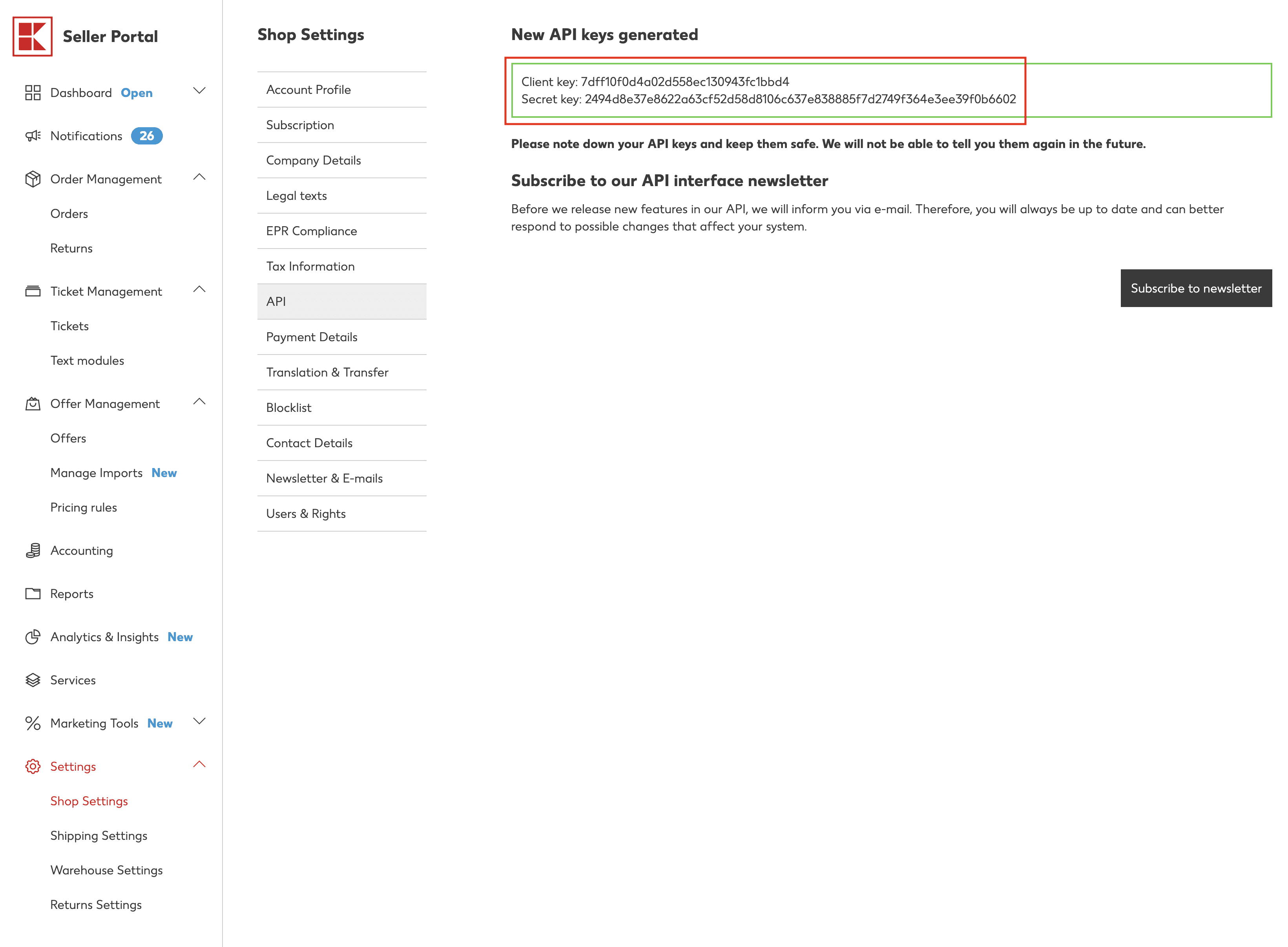
Save the "Client key" and "Secret key", as you will need them later.
-
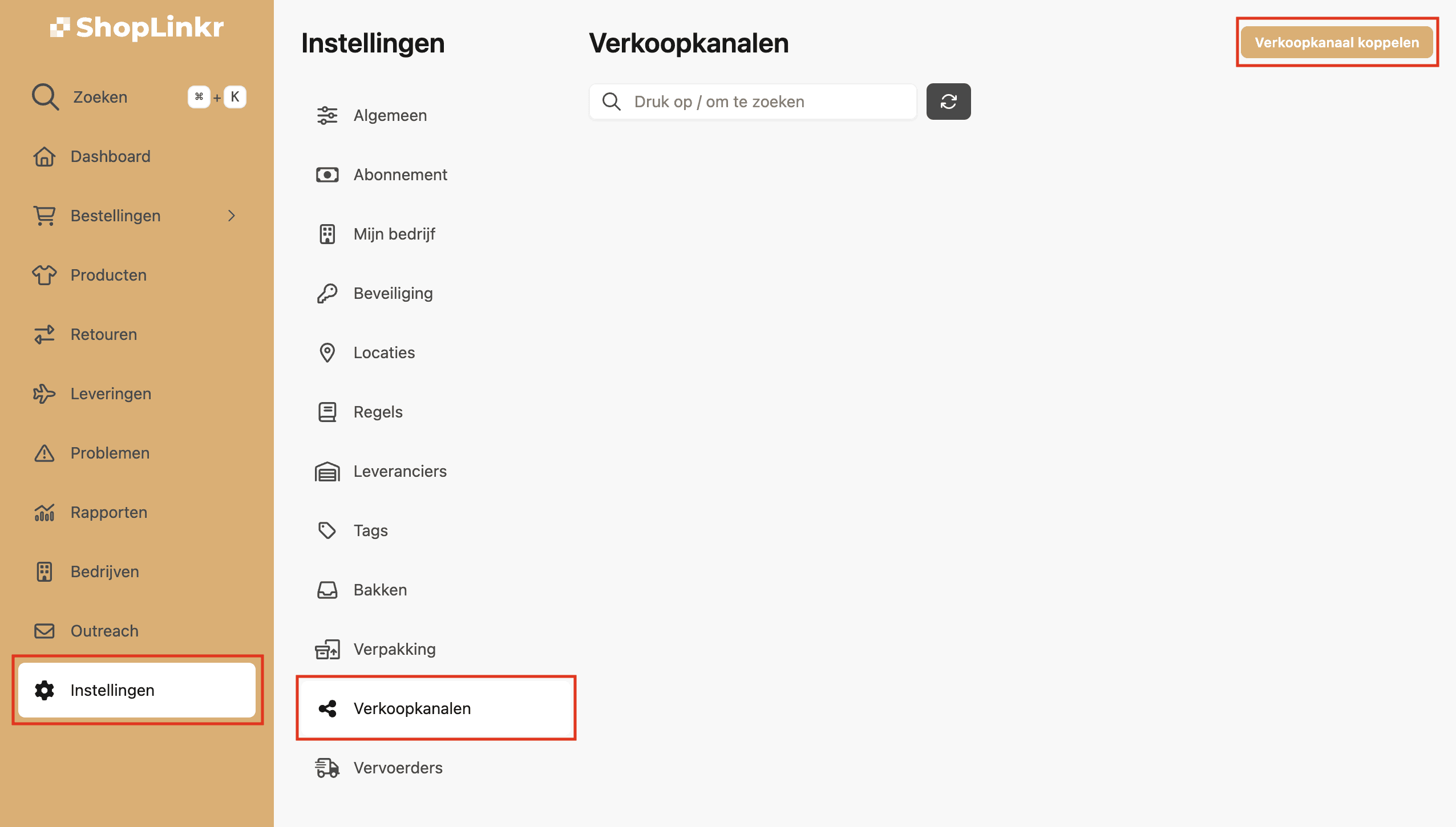
In ShopLinkr, go to "Settings" > "Sales channels" and click "Connect sales channel".
-
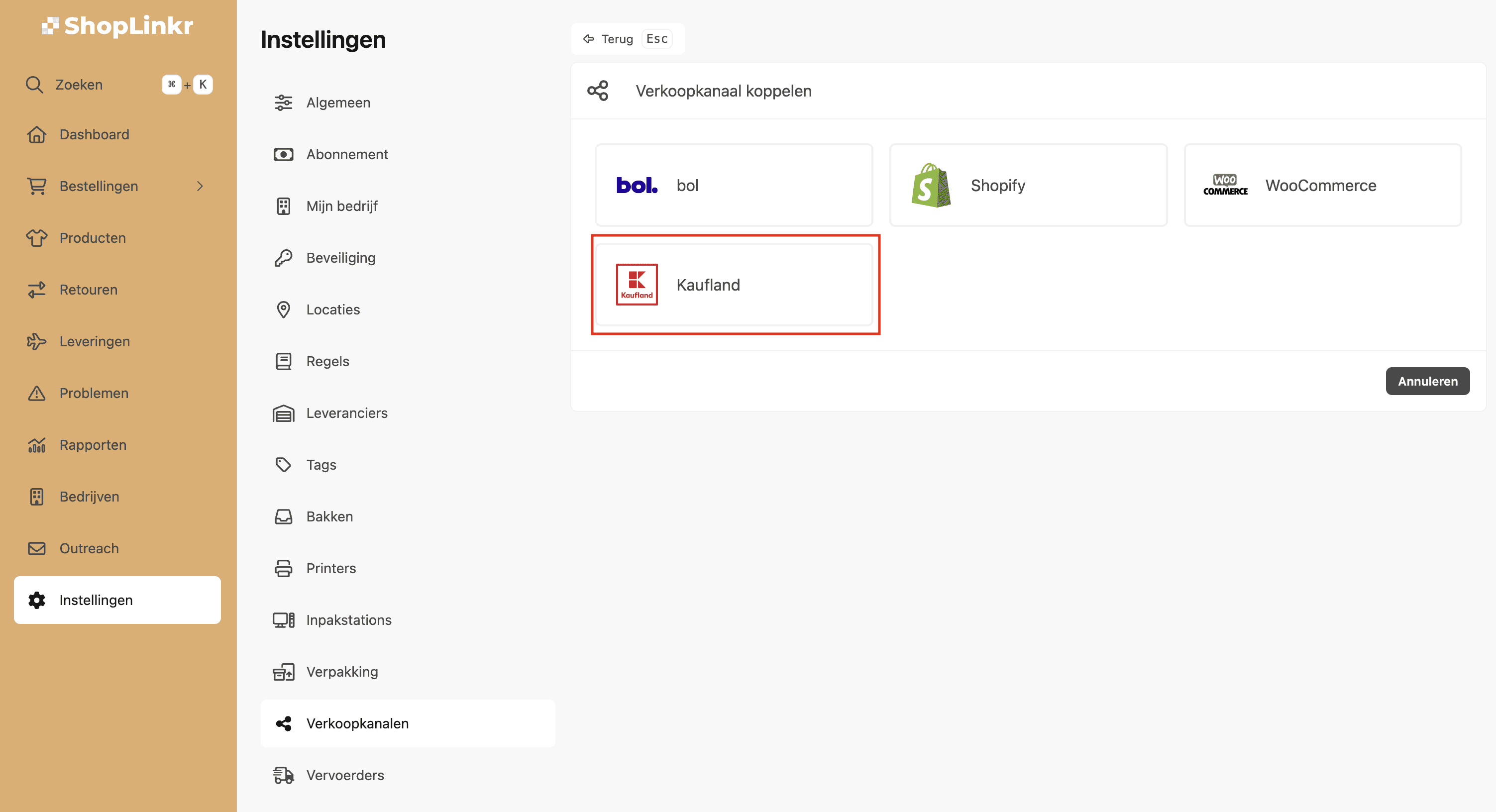
Select "Kaufland" as the type.
-
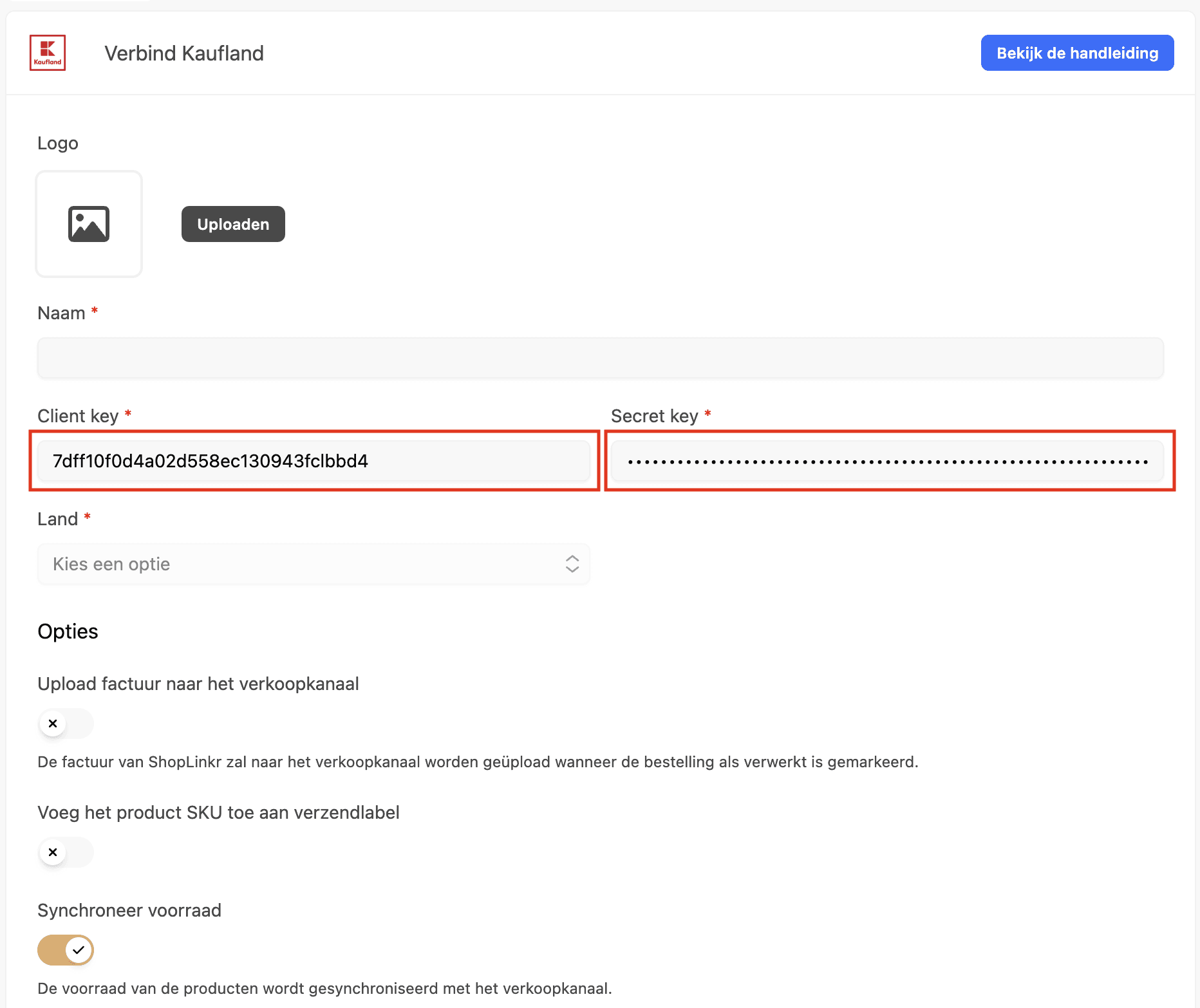
Enter the "client_key" and "secret_key" that you saved in step 3.
-
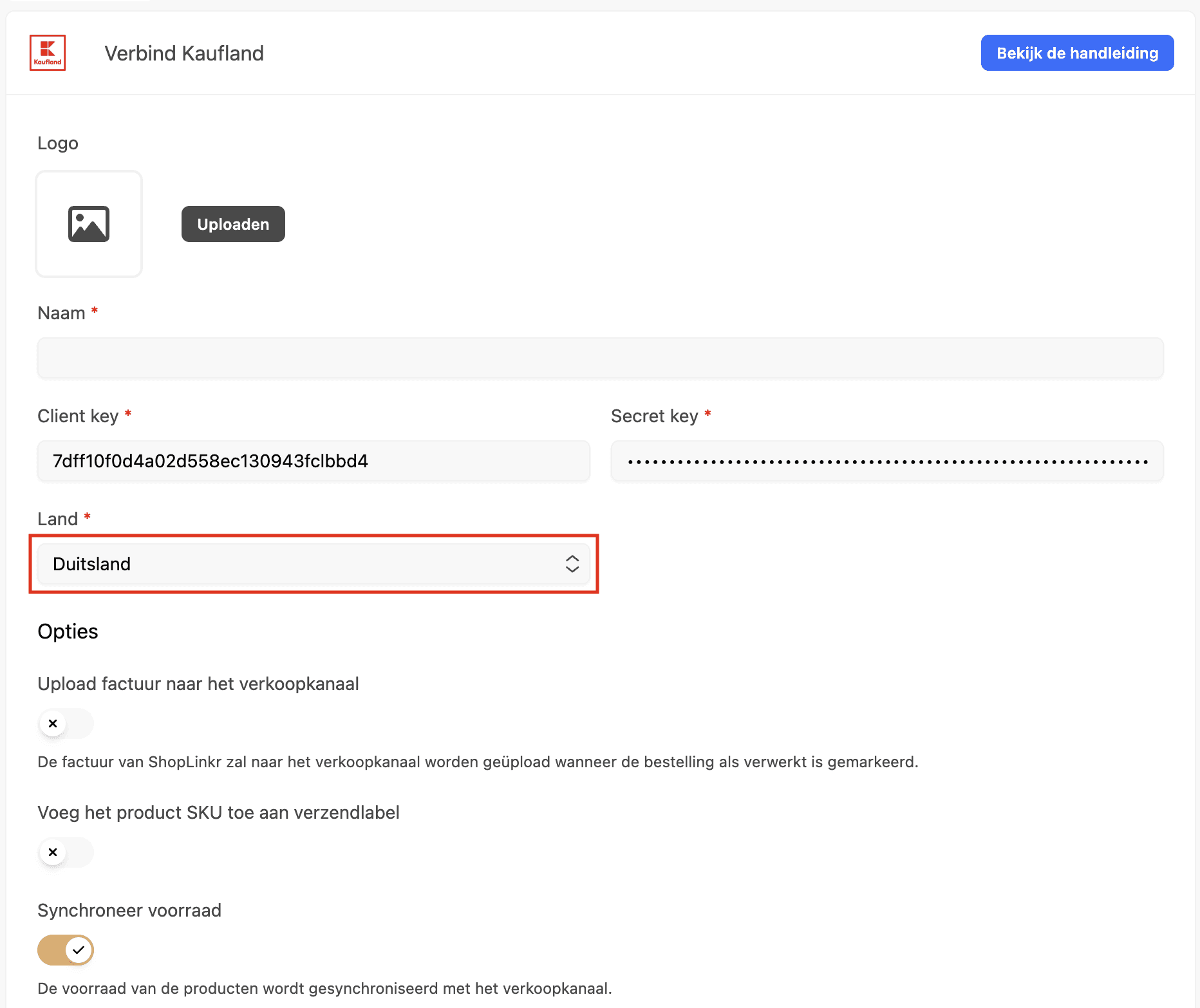
If the details you entered are correct, the available countries are retrieved. Select the right country for this sales channel.
-
Click "Connect".
All information is imported and the stock is updated to match the stock in ShopLinkr, provided the product already exists.
From this point on, ShopLinkr is the only place where you need to update your stock.